Why Your Azure VM Can See the DFS Root but Not the Files
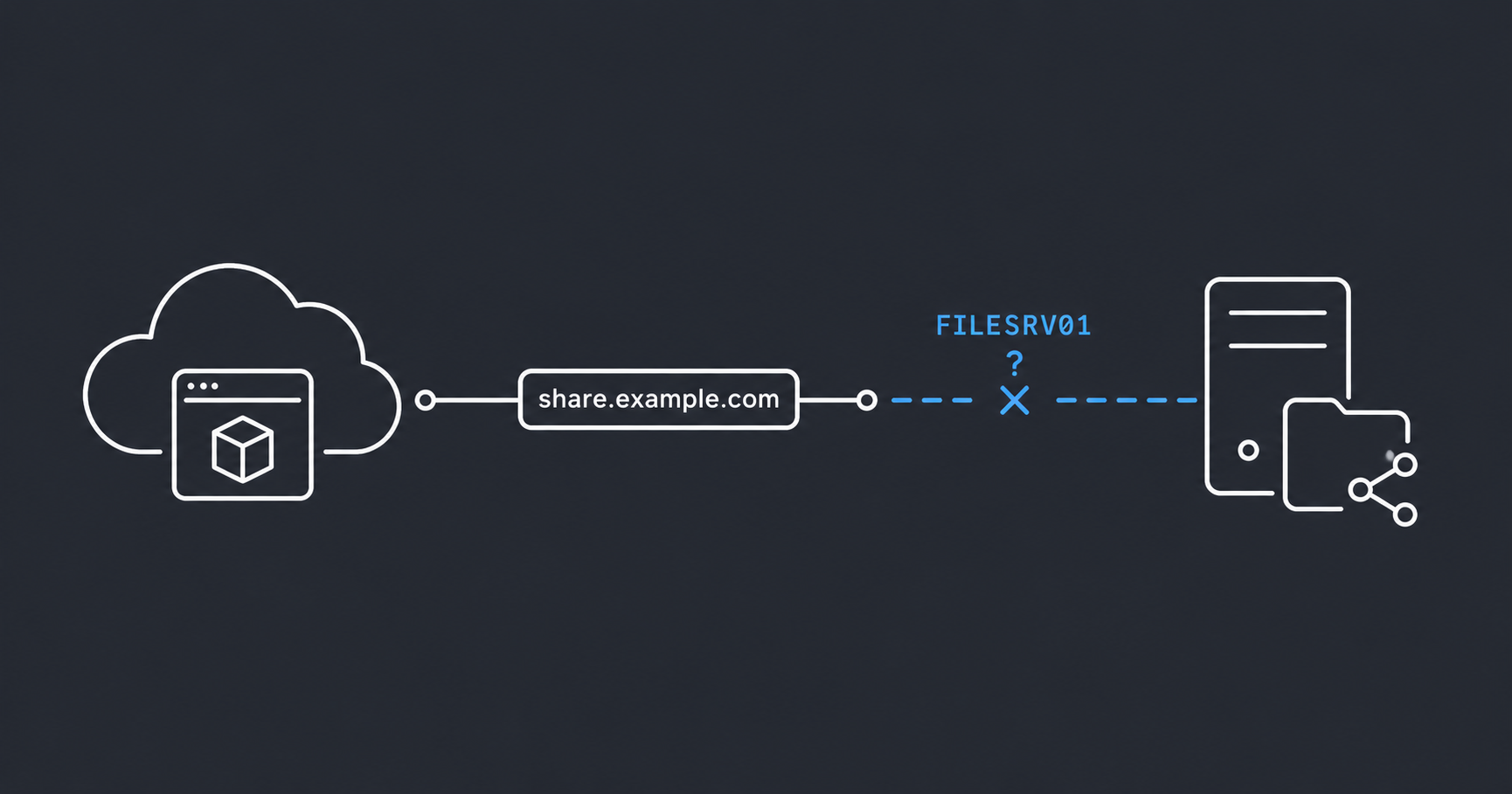
The DFS path opens halfway. You click one folder deeper. “Cannot resolve.” You assume Kerberos. You’re wrong.
The setup
An Azure VM. Not joined to the corporate domain. Its job is to read from a DFS namespace - the kind backed by a domain controller, with target servers scattered across regions. A data platform workload that needs to pull source files from shared storage.
The namespace is \\example.com\SharedFiles. Open it in Explorer - it opens. Browse one level in - still fine. Click into \\example.com\SharedFiles\Region01\Project42 - “The network path was not found.”
The DFS Properties tab for that folder shows a real target: FILESRV01. Type \\FILESRV01\share directly in Explorer - opens immediately. So the data is reachable. DFS just refuses to walk you there.
This is where you start guessing wrong.
The misleading symptoms
Here’s what I chased first, in order.
Red herring #1: Error 1219 and mixed credentials
1
Get-SmbConnection
1
2
3
4
ServerName                          ShareName    UserName
----------                          ---------    --------
FILESRV01.example.com          IPC$         NT SERVICE\SomeService
APPSRV02.example.com           SharedFiles  dataops-vm-01\LocalUser
Two sessions to two different servers, two different identities. The classic recipe for Windows error 1219:
Multiple connections to a server or shared resource by the same user, using more than one user name, are not allowed.
So I cleaned them up:
1
2
Get-SmbConnection | Remove-SmbConnection -Force
cmdkey /add:example.com /user:EXAMPLE\svc-dataops /pass
It helped. Sort of. Some paths started working, others didn’t. The story had to be more complicated than auth.
Red herring #2: Kerberos referral chain
The next theory was elegant. A non-domain VM has no Kerberos context. DFS targets in a domain-based namespace are typically resolved through referrals that can lean on Kerberos, especially for nested or interlinked DFS structures. So clearly: the first hop works because it’s plain SMB to the namespace root, but the second hop fails because the referral expects a Kerberos ticket the VM cannot get.
Plausible. Also wrong - at least for this specific case. The VM was using local credentials mapped via cmdkey for share-level auth, and that worked fine for direct UNC paths to the same target servers. If Kerberos were the blocker, direct UNC would fail too. It didn’t.
Red herring #3: The hosts file workaround
When you’ve been on something for an hour, you reach for hosts. Pinned FILESRV01 and a couple others to their IPs:
1
2
10.50.12.41   FILESRV01
10.50.12.41   FILESRV01.example.com
DFS path opened. Victory - for about thirty seconds, until I clicked into a different subfolder that pointed to a different target server I hadn’t pinned. Back to square one. You can’t hosts-pin your way through a DFS namespace that points at dozens of servers.
But this was the clue. Why did adding an entry to hosts fix it? Because hosts bypasses DNS. So this was a DNS problem.
The actual root cause
The DFS referral chain looks like this:
- Client asks for
\\example.com\SharedFiles- the namespace root. - Domain controller responds with the namespace target. This part comes back as an FQDN because the namespace itself is published under one. DNS happily resolves it.
- Client browses into
\SharedFiles\Region01\Project42. DC responds with the link target. This part comes back as a short name - justFILESRV01, notFILESRV01.example.com. - Client tries to resolve
FILESRV01. No suffix appended. NXDOMAIN. Error.
A domain-joined machine never hits step 4 because Group Policy gives it a DNS suffix search list. Short name? Append example.com. Try again. Resolved.
A VM deployed outside the domain join template has no such list. It tries the short name as a literal, fails, gives up, and reports “cannot resolve path” - which sounds like a DFS problem and is actually a DNS problem wearing a trench coat.
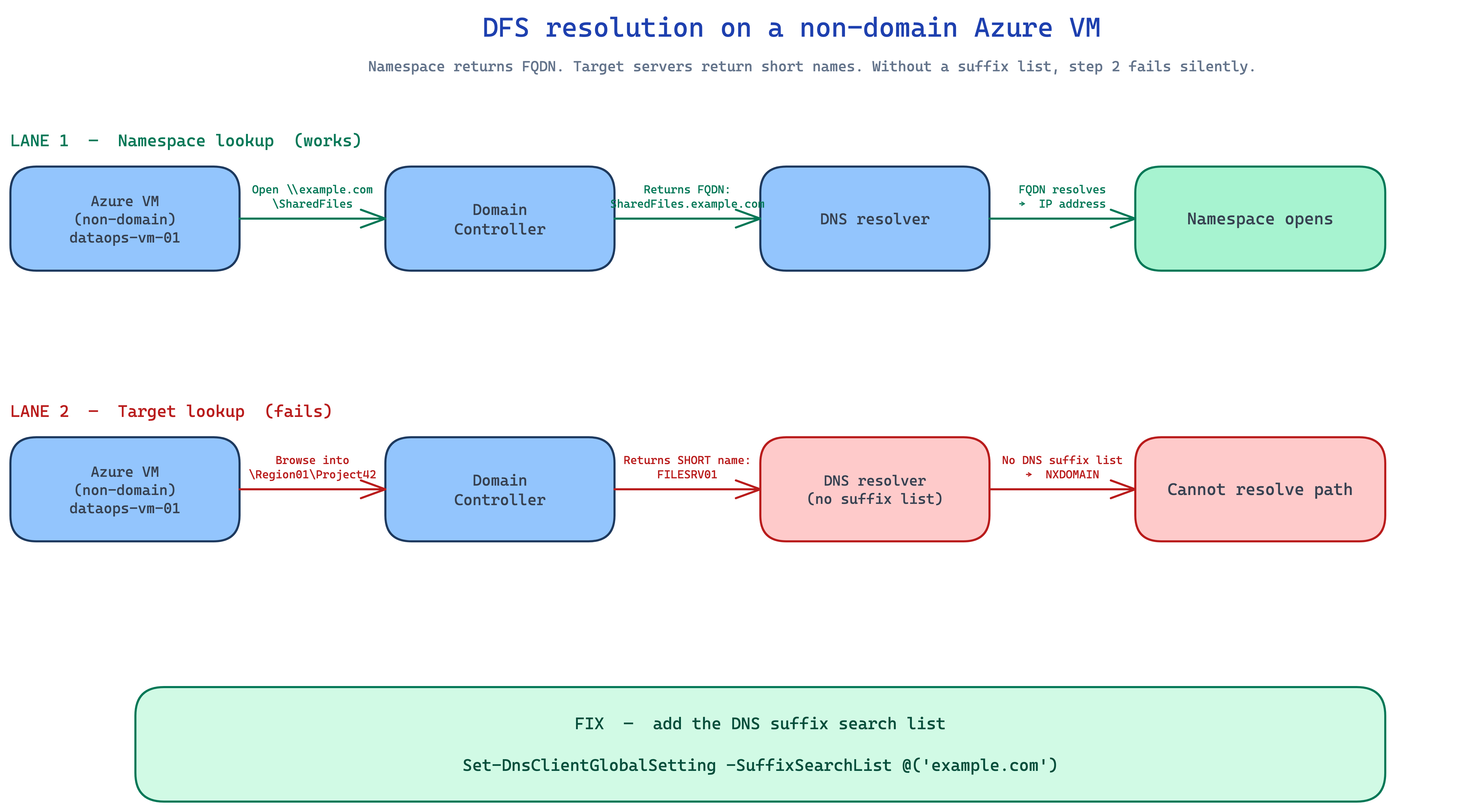 The namespace comes back as FQDN. Target servers come back as short names. Without a DNS suffix search list, step 4 fails silently.
The fix
One line.
1
2
Set-DnsClientGlobalSetting -SuffixSearchList @("example.com")
ipconfig /flushdns
If you prefer GUI: ncpa.cpl → adapter properties → IPv4 → Properties → Advanced → DNS → Append these DNS suffixes (in order) → add example.com.
Verify:
1
2
Resolve-DnsName FILESRV01        # should now return an IP
Test-NetConnection FILESRV01 -Port 445   # should be True
Now click back into that DFS path. Everything opens.
The diagnostic order you should follow
If I could send a note back to myself two hours earlier, it would be this checklist - cheapest checks first:
- DNS short name resolution.
Resolve-DnsName <shortname>for any target server you’ve seen in DFS Properties. If it fails, stop. You found it. - DNS suffix search list.
Get-DnsClientGlobalSetting. EmptySuffixSearchListon a non-domain VM that talks to corporate file shares is a smell. - TCP reach.
Test-NetConnection <fqdn> -Port 445. Confirms the route exists once DNS works. - SMB session state.
Get-SmbConnection. Now look at credentials and dedupe sessions. - Kerberos / DFS referral. Only if everything above is clean.
It is always tempting to start with the loudest error - in this case, error 1219 was screaming - but loud errors are often downstream of quiet ones. DNS is almost always upstream of everything.
Why this hits Azure VMs specifically
Azure VMs deployed by Marketplace image or custom template do not inherit your AD domain’s DNS suffix policy. They get whatever DNS the VNet hands out, which by default is Azure-provided DNS. If your VNet is wired to your on-prem DNS via private resolver or custom DNS settings, forward resolution of FQDNs works - that is why the namespace itself resolved. But short-name resolution requires the client to know what suffix to append, and that knowledge lives in a setting the deployment template never touched.
Three deployment patterns make this much more common than it should be:
- Ad-hoc data platform VMs built outside the domain because they only need outbound access to file shares - not full domain trust.
- Lift-and-shift servers that came from on-prem (where suffix was inherited from GPO) and lost it during the rebuild.
- Container hosts and self-hosted integration runtimes (SHIR for ADF, for example) running on non-domain Windows VMs but needing to read from corporate SMB.
If any of those describe you, set the DNS suffix search list at deploy time. Bake it into your image. Don’t wait for the symptom.
Pre-flight checklist for any non-domain Azure VM that touches corporate shares
Run this once at provision time. Saves the two hours later.
1
2
3
4
5
6
7
8
9
10
11
12
13
# 1. DNS suffix - the one that just bit me
Set-DnsClientGlobalSetting -SuffixSearchList @("example.com")

# 2. SMB signing - corporate file servers usually require it
Set-SmbClientConfiguration -RequireSecuritySignature $true -Confirm:$false

# 3. Pre-stage credentials for the file server domain
cmdkey /add:example.com /user:EXAMPLE\svc-account /pass:*

# 4. Verify
Resolve-DnsName <known-target-shortname>
Test-NetConnection <known-target-shortname> -Port 445
Get-DnsClientGlobalSetting | Select-Object SuffixSearchList
Takeaway
DFS error messages lie about the cause. “Cannot resolve path” sounds like DFS. It is often plain DNS.
A path that resolves halfway is a signal that the second hop uses a different resolution mechanism than the first. In DFS, the difference is FQDN versus short name. Without a DNS suffix search list, short names die silently.
Domain join silently installs a DNS suffix policy that most admins never think about - until they deploy a VM without it. Azure VMs outside the domain join template are the most common place this bites you.
Always check DNS before Kerberos before permissions. Cheapest first, loudest last.
And hosts is not a fix. It is a hint.
Authored by human + AI collaboration