Azure 800 Deployment Limit – Automate the Cleanup
Nothing says “great Friday afternoon” like your deployment pipeline refusing to work because Azure decided 800 is enough. No warning, no grace period – just a wall. Luckily, the fix is simpler than explaining to your manager why production is stuck.
The problem
Azure keeps a history of every ARM deployment in a Resource Group, and the hard limit is 800. Once you hit it, you get this lovely message:
Creating the deployment would exceed the quota of ‘800’. The current deployment count is ‘800’.
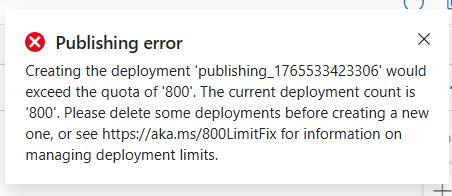 The moment you know your Friday is ruined.
I ran into this on a Resource Group with frequent deployments. You can delete old deployments manually through the portal or CLI, but that’s a one-time fix. Next month you’re back to square one. I needed something that runs quietly in the background and keeps the history under control – without me ever thinking about it again.
The fix
I set up an Automation Account with a PowerShell runbook that runs every Sunday night, deletes old deployment records and keeps the last 100. Here’s what I did.
1. Create the Automation Account
I created a new Automation Account in the same subscription as the target Resource Group. I named it aa-deployment-cleaner-prd – nothing fancy, just obvious enough that future me won’t wonder what it does.
2. Enable Managed Identity
In the Automation Account, I went to Identity → System assigned → switched Status to On → Save. This gives the runbook a way to authenticate to Azure without storing any credentials.
3. Assign permissions
The Managed Identity needed Contributor on the target Resource Group. Not the whole subscription – I kept it scoped to just the RG that had the problem.
I went to the Resource Group → Access control (IAM) → Add role assignment → Role: Contributor → Members: selected Managed identity → picked my Automation Account → Review + assign.
4. Created the Runbook
In the Automation Account, I went to Runbooks → Create a runbook:
- Name:
Clean-DeploymentHistory - Type:
PowerShell - Runtime version:
7.2
I pasted the script below and hit Publish:
1
2
3
4
5
6
7
8
9
10
11
12
13
14
15
16
17
18
19
20
21
22
23
24
25
26
27
28
29
30
31
32
33
34
35
36
37
38
39
40
41
42
43
44
45
46
47
48
49
50
51
52
53
54
55
56
57
58
59
60
61
62
63
64
65
66
67
68
69
70
<#
.SYNOPSIS
    Cleans deployment history in a Resource Group, keeping last 100 deployments.
.DESCRIPTION
    Removes old deployment records to prevent the 800 quota error.
.NOTES
    Runs: Weekly on Sunday 22:00 UTC
    Authentication: System Assigned Managed Identity
#>
param()
try {
    Connect-AzAccount -Identity -ErrorAction Stop
    Write-Output "Successfully authenticated using Managed Identity"

    $resourceGroupName = "rg-yourproject-prd"
    $keepCount = 100

    Write-Output "Fetching deployment history for RG: $resourceGroupName"
    $deployments = Get-AzResourceGroupDeployment -ResourceGroupName $resourceGroupName |
                   Sort-Object Timestamp -Descending

    $totalCount = $deployments.Count
    Write-Output "Total deployments found: $totalCount"

    if ($totalCount -le $keepCount) {
        Write-Output "Deployment count ($totalCount) is within limit ($keepCount). No cleanup needed."
        exit 0
    }

    $deploymentsToDelete = $deployments | Select-Object -Skip $keepCount
    $deleteCount = $deploymentsToDelete.Count

    Write-Output "Deployments to delete: $deleteCount"
    Write-Output "Keeping last $keepCount deployments"

    $deletedCount = 0
    $failedCount = 0

    foreach ($deployment in $deploymentsToDelete) {
        try {
            Remove-AzResourceGroupDeployment -ResourceGroupName $resourceGroupName `
                -Name $deployment.DeploymentName -ErrorAction Stop
            $deletedCount++

            if ($deletedCount % 10 -eq 0) {
                Write-Output "Progress: $deletedCount/$deleteCount deleted..."
            }
        }
        catch {
            $failedCount++
            Write-Warning "Failed to delete deployment '$($deployment.DeploymentName)': $_"
        }
    }

    Write-Output "=========================================="
    Write-Output "Cleanup Summary:"
    Write-Output "- Total deployments before: $totalCount"
    Write-Output "- Successfully deleted: $deletedCount"
    Write-Output "- Failed to delete: $failedCount"
    Write-Output "- Remaining deployments: $($totalCount - $deletedCount)"
    Write-Output "=========================================="

    if ($failedCount -gt 0) {
        Write-Warning "Some deployments failed to delete. Check logs above."
    }
}
catch {
    Write-Error "Runbook failed: $_"
    throw
}
5. Tested before scheduling
I ran the runbook manually first – clicked Start, waited a minute or two, and checked the Output. It counted and deleted the old deployments without issues. Don’t skip this step – you don’t want to find out your Managed Identity has no permissions at 2 AM on a Sunday.
6. Scheduled it
In the Automation Account I created a new schedule:
- Name:
weekly-deployment-cleanup - Recurrence: every 1 week, Sunday only
- Time: 22:00 UTC
- Expires: never
I linked the schedule to the Clean-DeploymentHistory runbook. Done – set it and forget it.
A note on subscriptions
When you use Connect-AzAccount -Identity, the Managed Identity automatically connects to the subscription where the Automation Account lives. I initially wondered about this – turns out Azure handles it. But if you work with multiple subscriptions, add an explicit Set-AzContext after connecting to be safe:
1
2
Connect-AzAccount -Identity -ErrorAction Stop
Set-AzContext -SubscriptionId "your-subscription-id"
Takeaway
The 800 deployment limit is one of those things you only discover when it blocks you. A simple Automation Account runbook on a weekly schedule keeps it under control permanently. I went with Automation Account over Azure Functions because it’s a natural fit for scheduled PowerShell tasks – no runtime configuration, no hosting plan, just a runbook and a schedule. If you’re already comfortable with PowerShell and Azure Automation, there’s no reason to overcomplicate it.
Authored by human + AI collaboration